File Extractors
File extractors are Druid-specific tools that pull raw content out of uploaded files before the Knowledge Base (KB) engine indexes it. For each supported file type, you choose:
-
Extractor — how text, structure, images, and media are read from the file.
-
Content Chunker — how extracted content is split into articles (see Content Chunkers).
By default, most file types use the Standard extractor and the LLM content chunker. You can change either setting per file type on the File Extractors section or override them at the data source, node, or leaf level.
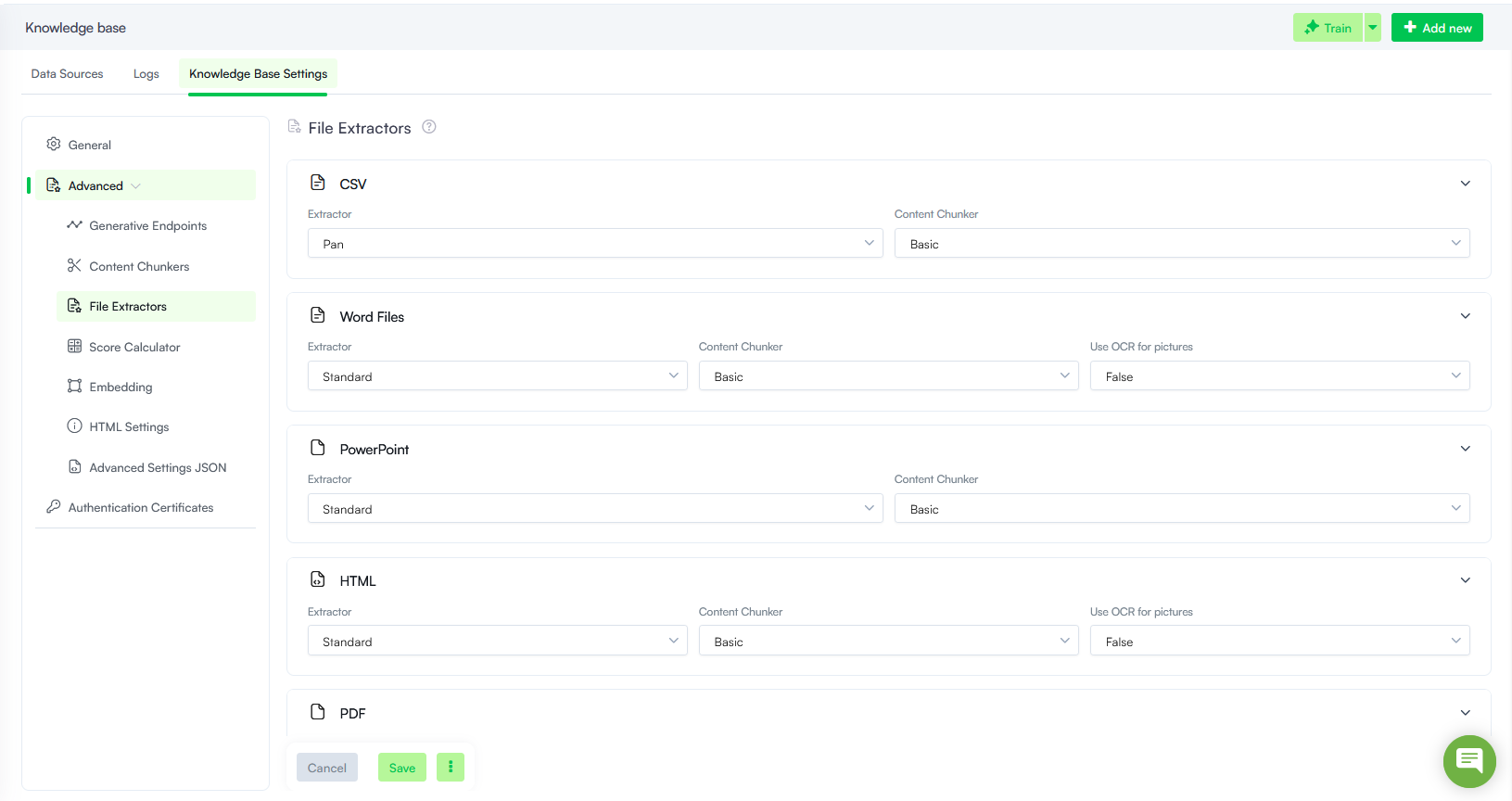
Once you've selected the preferred file extractor(s), click Save to apply your changes.
Specific file extractors are available per file type, as follows:
CSV
| File Extractor | Description | When to use |
|---|---|---|
| Pan (default) | The Pan Extractor is designed for handling complex, mixed, or loosely formatted CSV files. It is best suited for situations where the structure of the CSV is not strictly uniform, making it ideal for handling variations or irregularities in the data. | You need to extract data from CSV files with unstructured or inconsistent formats. |
| Structured | The Structured Extractor is optimized for clean, well-formed CSV files where each row follows a consistent format. It is faster and more efficient for extracting data when the file adheres to a regular, predefined structure. | You have well-organized and consistent CSV files with a fixed structure |
| IDP (Technology preview) |
Uses advanced document parsing to extract content from CSV files, improving the interpretation of complex data structures. Info: For best results, we recommend using the IDP extractor with the Basic content chunker.
|
Use when CSV files contain complex or irregular data structures that require advanced processing. |
Word Files
Druid supports the following extractors for Word files (.doc, .docx):
| File Extractor | Description | When to use |
|---|---|---|
| Standard |
Extracts text while preserving basic document structure, including headings, paragraphs, and lists. Image extraction is enabled by default. Images are stored in Druid storage and linked with a 30-minute authentication token. The link is embedded in the extracted article paragraph so users can view the image temporarily in chat. To make text within images searchable in the Knowledge Base, set Use OCR for pictures to true. The extractor performs OCR on images found in the file, stores the image in Druid storage, and links it with a 30-minute authentication token. This link is embedded in the extracted article paragraph, allowing users to also view the image temporarily in chat. NOTE: OCR for pictures is disabled by default.
|
Use for general-purpose text extraction from Word documents with relatively simple layouts. |
| IDP (Technology preview) |
Uses advanced document parsing to extract content from Word documents with complex layouts and structures. Info: For best results, we recommend using the IDP extractor with the Basic content chunker.
|
Use for documents containing complex formatting, tables, or multiple content elements that require more advanced extraction. |
Powerpoint
Druid supports the following extractors for PowerPoint files (.pptx, .ppsx):
| File Extractor | Description | When to use |
|---|---|---|
| Standard |
Extracts content from PowerPoint presentations for Knowledge Base indexing and search. |
Extracts content from PowerPoint presentations for Knowledge Base indexing and search. Use for presentations with relatively simple slide layouts and content structures. |
| IDP (Technology preview) |
Uses advanced document parsing to extract content from presentations with complex slide layouts and multiple content elements. Info: For best results, we recommend using the IDP extractor with the Basic content chunker.
|
Use for presentations containing complex layouts, tables, and other structured content that requires advanced extraction. |
HTML
Druid supports the Standard extractor for HTML. It extracts text while preserving headings, paragraphs, lists, and links, and removes unnecessary web formatting.
Image extraction is enabled by default if the img tag is not excluded in the HTML Settings. Images are stored in Druid storage and linked with a 30-minute authentication token. The link is embedded in the extracted article paragraph so users can view the image temporarily in chat.
To make text within images searchable in the Knowledge Base, set Use OCR for pictures to true. The extractor performs OCR on images found in the HTML code, stores the image in Druid storage, and links it with a 30-minute authentication token. This link is embedded in the extracted article paragraph, allowing users to also view the image temporarily in chat.
Druid supports multiple file extractors for PDF files. Each extractor is designed for different types of PDF documents, ensuring optimal content extraction based on document structure and format.
| File Extractor | Description | When to use | OCR & Image Capabilities |
|---|---|---|---|
| Daguerre |
Designed for high-accuracy extraction of complex documents. It can extract both text and images from PDF files. |
Supports image extraction and OCR for pictures. |
|
| IDP (Technology preview) |
Uses advanced document parsing to extract content from PDF files with complex layouts and structures, improving content extraction accuracy and contextual understanding. Info: For best results, we recommend using the IDP extractor with the Basic content chunker.
|
Use for complex business documents containing tables, multiple columns, and other sophisticated layouts. | - |
| Standard |
The default, recommended PDF extractor starting with Druid Platform 9.25 (formerly known as Elpis). It provides advanced document parsing capabilities and is automatically used for all new Knowledge Bases. It is optimized for multimedia-rich PDFs and can extract both text and images, making it ideal for documents that include diagrams, charts, and embedded visuals. Info: For existing knowledge bases configured before version 9.25, the updated PDF extractor selection list will appear only after you reset the advanced settings. Once you click Reset Advanced Settings, Elpis is removed from the drop-down, and Standard (Deprecated) becomes visible alongside the new Standard default extractor option.
|
If your PDFs contain important images that should be accessible in extracted content. |
Supports image extraction OCR for pictures. Druid version 9.20+ supports the Auto mode when performing OCR for pictures. |
| Omni | The Omni Extractor is specifically designed to extract content from structured PDFs. | For structured PDFs added to unstructured data sources to improve article quality. | Does not support image extraction OCR for pictures. |
| Standard (Deprecated) |
The legacy standard text extraction engine. This option is maintained strictly for backward compatibility with older configurations and is scheduled for future removal. |
deprecated | Does not support image extraction and OCR for pictures. |
| Structured | The Structured Extractor is optimized for PDFs with consistent formatting, ensuring accurate extraction of headings, tables, and paragraphs. | Extract text from highly structured PDFs with a defined layout. | Does not support image extraction and OCR for pictures. |
For the Standard (formerly known as Elpis) and Daguerre extractors, image extraction is enabled by default. Images are stored in Druid storage and linked with a 30-minute authentication token. The link is embedded in the extracted article paragraph so users can view the image temporarily in chat.
To make text within images searchable in the Knowledge Base, set Use OCR for pictures to true. The extractor performs OCR on images found in the file, stores the image in Druid storage, and links it with a 30-minute authentication token. This link is embedded in the extracted article paragraph, allowing users to also view the image temporarily in chat.
For the Elpis and Daguerre extractors, you can configure Use OCR for pictures using one of three modes:
- False (Default): It extracts the image, stores it in Druid storage, and embeds a link with a 30-minute authentication token in the paragraph, allowing users to view the original image within the chat.
- True: The extractor performs OCR on all images in the file to convert them into searchable text, stores the images in Druid storage, and links them with a 30-minute authentication token. These links are embedded in the extracted article paragraph, allowing users to also view the original images temporarily in chat.
- Auto: A hybrid intelligence mode. If the extractor finds both images and text on the same page, it skips OCR for the image. Instead, it extracts the image, stores it in Druid storage, and embeds a link with a 30-minute authentication token in the paragraph, allowing users to view the original image within the chat.
Excel Files
Druid provides multiple extractors for Excel files (.xls, .xlsx, .xlsm), each designed for different extraction needs. Choose the appropriate extractor based on your need for table structure, formatting, or bulk data extraction.
| File Extractor | Description | When to use |
|---|---|---|
| IDP (Technology preview) |
Uses advanced document parsing to extract content from Excel files, improving the interpretation of complex spreadsheet structures. Info: For best results, we recommend using the IDP extractor with the Basic content chunker.
|
Use for spreadsheets containing complex tables, multiple data structures, or layouts that require advanced extraction. |
| Pan | Extracts content from Excel files while preserving table structures. | Use when maintaining the original table layout is important. |
| Structured | Extracts structured data by identifying patterns within rows and columns, ensuring a clean and organized output. | Ideal for extracting well-structured tables for better indexing and search accuracy. |
| Standard | Extracts text-based content while ignoring complex formatting or embedded objects. | Suitable for general text extraction without requiring table structure preservation. |
| Standard (Deprecated) |
The legacy standard text extraction engine. This option is maintained strictly for backward compatibility with older configurations and is scheduled for future removal. |
deprecated |
| Reader | Processes the entire spreadsheet and extracts data efficiently, including multiple sheets if applicable. | Best for bulk extraction where data needs to be read from multiple sheets. |
JSON
Druid supports the Structured extractor for JSON data processing.
Use structured JSON files to ingest content from third-party systems (such as Salesforce or Confluence) directly into the Knowledge Base. This extraction method is compatible with the following data source types:
- Unstructured
- File Repository
- Custom
The JSON file should follow this format:
JSON structure
[
  {
    "Title": "Sample Title",
    "Content": "Content 1"
  },
  {
    "Title": "Sample Title 2",
    "Content": "Content 2",
    "PageNumber": "3"
  },
  {
    "Title": "Sample Title 3",
    "Content": "Sample Content 3",
    "SheetName": "Sheet1"
  }
]
The following table provides the description of each JSON property:
| Property | Required | Description |
|---|---|---|
| Title | Yes | The title of the content entry. |
| Content | Yes | The content to be added to the Knowledge Base. |
| PageNumber | No | Relevant only when mapping data from PDF documents. Specifies the page number from where the content was extracted. |
| SheetName | No | Relevant only when mapping data from Excel files. Specifies the sheet name where the content was extracted. |
Video
Druid can ingest video files from SharePoint, Custom Data Sources, file repository, shared drive, and websites where the video is hosted directly (not embedded from YouTube, Vimeo, or similar platforms). The KB Agent discovers the file, converts it to audio, generates a transcript with ASR, then applies the selected Extractor and Content Chunker to build searchable KB content from that transcript.
For more information, on how to extract data from video content, making it searchable and usable within your knowledge base, see Extracting Data from Video Files.
Audio
Druid supports the Standard extractor for audio files. The KB Agent transcribes the file using automatic speech recognition (ASR), then extracts and chunks content from the transcript for indexing.
Choose Content Chunker: Basic for fixed-size chunks, or Llm for context-aware chunking. You can override these settings at the data source, node, or leaf level, as with other file types.